Ergonomics for Kids: Setting Up a Back-Friendly Typing Station at Home
Here's a scene that plays out in homes everywhere: a child hunched over a laptop on the couch, legs folded underneath them, neck craned forward at an alarming angle. Or maybe they're at the kitchen table, feet dangling a foot off the ground, wrists bent awkwardly over a keyboard designed for adult hands. It works for now, sure - but it's quietly setting up problems.
As kids spend more time typing for school, for fun, and for typing practice, getting their workspace set up properly isn't just a nice-to-have. It's genuinely important for their growing bodies. The good news is that you don't need expensive equipment to make it right.
Why Ergonomics Matters Even More for Kids
Adults get repetitive strain injuries from bad desk setups, and we've stopped growing. Kids are still developing - their bones, muscles, and joints are all works in progress. Poor posture during regular typing sessions can contribute to neck strain, back pain, and wrist discomfort that shouldn't be part of any child's experience.
The tricky part? Most desks, chairs, and keyboards are built for adults. A standard desk is about 73cm high - perfect for someone who's 175cm tall, but a real problem for a 120cm-tall eight-year-old. That mismatch is where most ergonomic issues start.
The Chair: Getting the Foundation Right
The chair is where everything begins. When your child is seated, here's what to check:
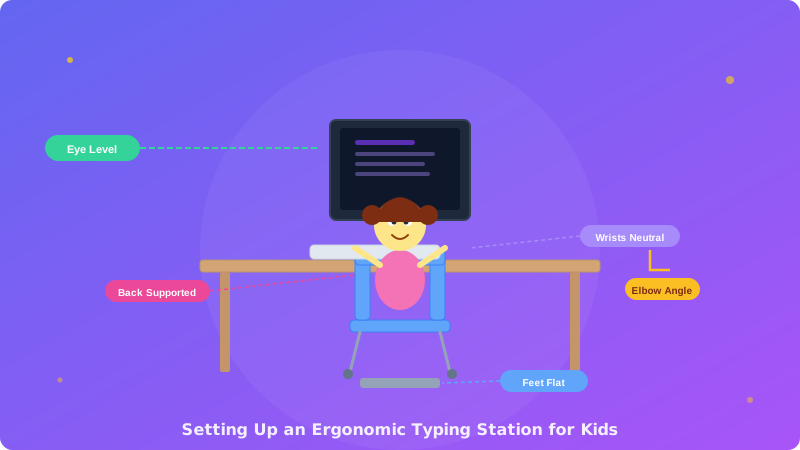
- Feet flat on the floor - if their feet are dangling, their whole posture cascades downhill. Use a footrest, a sturdy box, or even a stack of old books to give them a solid platform
- Thighs roughly parallel to the floor - knees should be at about a 90-degree angle. If the chair is too high, lower it or add a seat cushion on a lower chair
- Back supported - a small cushion or rolled-up towel behind their lower back works if the chair is too deep for their frame
You don't need a fancy ergonomic chair. A regular dining chair with a cushion and a footrest gets the job done for most kids. The key is that they're not perching on the edge or slouching into the back.
Screen Height and Distance
The top of the screen should be at or slightly below your child's eye level. This prevents them from tilting their head up or - far more commonly - craning their neck down to see the screen.
For laptops, this is almost always a problem. The screen is attached to the keyboard, so it sits too low by default. The fix is simple: place the laptop on a stand, a sturdy box, or a stack of books to raise the screen, then use an external keyboard. A basic USB keyboard costs very little and makes a massive difference.
Screen distance should be roughly an arm's length away - about 45-65cm. Too close and their eyes strain; too far and they'll lean forward unconsciously. Have your child sit back in their chair and extend their arm - their fingertips should just about touch the screen.
Wrist and Hand Position
This is the one parents tend to miss. When typing, your child's wrists should be in a neutral position - not bent up, not bent down, not angled to the side. Imagine a straight line running from the forearm through the wrist to the fingers.
Here's what to avoid:
- Resting wrists on the desk edge - this creates pressure on the carpal tunnel area. Wrists should float above the keyboard or rest lightly on a wrist pad during pauses (not while actively typing)
- Keyboard too high - if the desk surface is too tall, kids raise their shoulders and bend their wrists upward to reach the keys. This is surprisingly common and causes fatigue fast
- Keyboard too far away - this forces kids to stretch their arms forward, pulling their shoulders out of alignment
When the keyboard is at the right height, your child's elbows should be bent at roughly 90 degrees, with their upper arms relaxed at their sides - not reaching forward or up.
The Lighting Factor
This isn't strictly about posture, but bad lighting causes kids to lean forward and squint, which ruins their position. Make sure the screen isn't facing a bright window (glare causes squinting and leaning) and that the room has enough ambient light. The screen brightness should be roughly similar to the surrounding environment - not blazing bright in a dark room.
The "20-20-20" Break Rule
Even with a perfect setup, sitting in one position for too long is a problem. Teach your child the 20-20-20 rule: every 20 minutes, look at something 20 feet away for 20 seconds. It gives their eyes a break and is a natural prompt to check their posture and wiggle around a bit.
For typing practice sessions, this is easy to build in. Most sessions on platforms like TypingTales are naturally broken into short story chunks, so there are natural pause points for a quick stretch and reset.
A Quick Setup Checklist
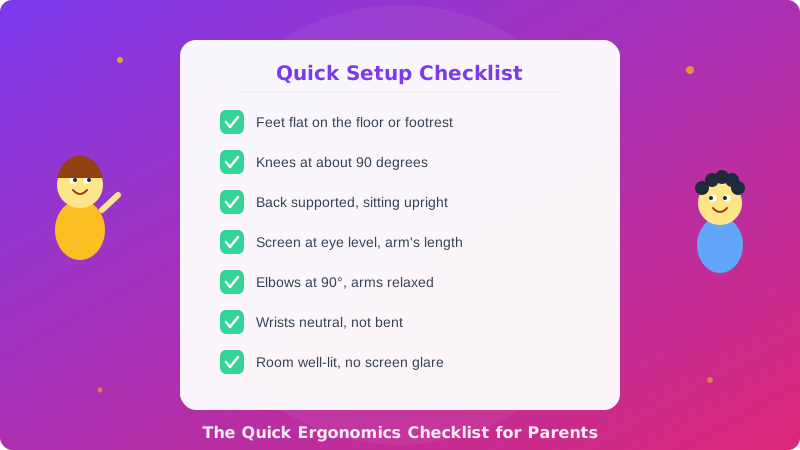
Here's a simple checklist you can run through before your child's next typing session:
- Feet flat on the floor (or on a footrest)
- Knees at about 90 degrees
- Back supported, sitting upright (not slouching)
- Screen at eye level, arm's length away
- Elbows at 90 degrees, arms relaxed at sides
- Wrists neutral - not bent up or down
- Room well-lit, no screen glare
It takes less than a minute to check all of these, and after a few days it becomes second nature for both you and your child.
The Bottom Line
You don't need to buy a standing desk or a specialist ergonomic chair to set your child up properly. A few simple adjustments - a footrest, a laptop stand, the right chair height - can make a real difference in how comfortable and healthy they are during typing practice. Get the setup right, and they'll be able to focus on what actually matters: learning to type well and having fun doing it.